
You follow a link and a page opens. You have not scrolled, typed, or answered the cookie banner. I wanted to know how much the site already has at that point, so I built a test site, followed one link to it, and wrote down everything it received while I kept my hands off the keyboard.
The short version:
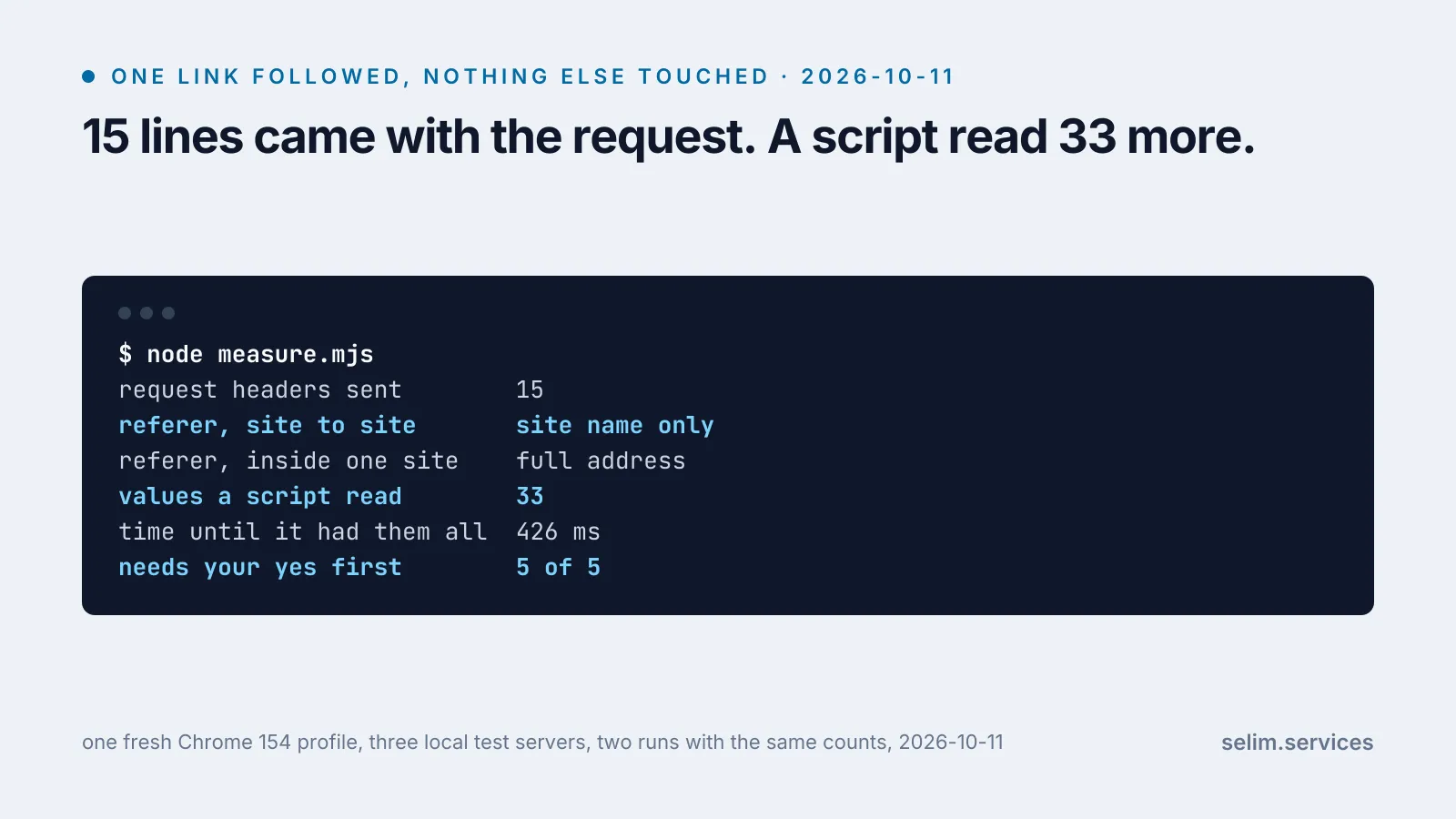
- The request for the page carried 15 lines about my browser. One of them named the site I had just come from, but not the page.
- A script on the page then read 33 more things without asking: battery level, dark mode, the graphics chip, how many processor cores. It had all of them in under half a second.
- The five things I would mind most, location, camera, microphone, notifications and the clipboard, all came back as “ask first”. The page never asked, so it never got them.
- My name, email and phone number were nowhere in any of it.
How I tested it
A small program on my laptop played three websites. The first had a link on it. The second was the page the link led to, and it logged what arrived. The third played an outside company whose picture is embedded on the second, the way an ad or a like button is.
A script drove my installed Chrome 154 on a fresh profile. It opened the first site and clicked the link. That was the only click in the test. I ran it twice and the counts matched.
The request carried 15 lines before the page existed
To get a page, the browser sends a request, and the request comes with a short list of labelled lines called headers. Mine had 15.
| what the lines say | how many |
|---|---|
| which browser and system this is | 4 |
| which languages I read, in order of preference | 1 |
| which site I came from | 1 |
| how the request started (a person followed a link on another site) | 5 |
| which file formats the browser accepts | 2 |
| connection details | 2 |
The W3C calls this layer passive: what a site can learn “without the use of any code executed on the client”.[6] The site does nothing to get these lines. They arrive with every request.
One thing was missing, and that is a cookie. The profile was new, so the browser had none to send. If the site had set one, a second visit would carry a sixteenth line.
The site also sees the internet address the request came from, because it has to send the page back somewhere. My test ran inside one laptop, so I have no real address to show. Google’s own explanation of what an address gives away is short: “IP addresses are roughly based on geography”, so any website “may be able to infer and use some information about your general area”.[4] Google’s words are “general area”, not an exact position.
It knows which site sent you, but not which page
The link I clicked sat on a page with the address /reviews/best-laptops-2026?page=3. This is what the next site was told:
| the request | what the receiving side was told |
|---|---|
| from the first site to the second | http://127.0.0.1:4411/ |
| from one page to another inside the second site | http://localhost:4412/offer?utm_source=newsletter&utm_campaign=autumn |
| from the second site to the outside company’s picture | http://localhost:4412/ |
Between two different sites, Chrome passed on the name of the site and cut off the rest. Inside one site, the full address went through. This has been Chrome’s behaviour since version 85: “only the origin is sent in the Referer header of cross-origin requests”.[1] It is a default, though. The same page says “websites can still pick a policy of their choice”, so a site can tell the browser to send more or to send nothing.[1]
The middle row shows the other way a site learns where you came from. The link itself can carry tags. Mine ended in utm_source=newsletter&utm_campaign=autumn, and the site that receives you reads its own address. A link in an email or an ad can carry tags like these, and then they say which email or which ad.
Then a script read 33 things without asking
Once the page loads, it can run code, and code can ask the browser questions. The W3C calls this the active layer.[6] My test page asked 33 questions that need no permission and got 33 answers.
| group | count | some of what came back |
|---|---|---|
| browser and system | 5 | Chrome 154.0.8037.98, macOS 26.2, an Arm processor |
| language and time | 4 | my languages, my timezone by name |
| screen and window | 5 | size, pixel density, no touchscreen |
| hardware | 3 | 11 processor cores, 16 GB of memory, the graphics chip by name |
| preferences | 3 | dark mode is on, reduced motion is off |
| connection | 3 | an estimated speed of 1.6 megabits per second |
| battery | 2 | 80%, plugged in |
| how I arrived | 3 | the site I came from, the full address with its tags, 3 pages deep in this tab |
| storage and settings | 3 | cookies allowed, 10.7 GB of storage on offer |
| two fingerprint tests | 2 | 21 of 30 fonts installed, one small drawing |
On the first run the script had every answer 426 milliseconds after the page was requested. On the second it took 76.
Some of the answers are useful to me. The site can show its dark version because it knows I use dark mode, pick my language, and fit the layout to my window. That is what several of these answers are for.
A few answers were less exact than the truth. The memory figure was 16 GB on a laptop that has 18. And the request header described my machine as Intel Mac OS X 10_15_7, which is wrong twice: the processor is not Intel and the system is years newer than 10.15. That is deliberate. Chromium’s documentation lists it as the fixed value for every Mac, and says such strings “will not update even if a user is on an updated operating system or device.”[3]
The protection is thinner than it looks, though. Chrome also has a newer way to describe itself. By default it sends only “the browser brand, significant / major version, platform, and an indicator if the client is a mobile device”, and a page that wants more has to ask.[2] My page asked. It got the real processor type, the real system version and the full browser version, and no prompt appeared. Google’s page says “it’s down to the browser what values, if any, are returned.”[2] On this run Chrome returned all of them.
What it would have had to ask for
A browser treats some things differently. The W3C’s name for them is powerful features, defined as features “for which a user gives express permission before the feature can be used.”[5] I had the page check the state of five without requesting them.
| feature | state on a first visit |
|---|---|
| precise location | ask first |
| camera | ask first |
| microphone | ask first |
| notifications | ask first |
| reading the clipboard | ask first |
All five were closed. To open one, the page has to trigger the small prompt under the address bar, and you have to say yes. So that prompt is the one real gate on a first visit. Nothing in the earlier tables passed through it.
I also went through the 15 lines and the 33 answers looking for anything that names a person. There was no name, no email address, no phone number and no street address. A site gets those when you type them into a form or sign in.
What it adds up to
None of the 33 answers is private on its own. Lots of people have my screen size, and lots have my graphics chip. The trouble is the combination. Put enough ordinary details together and they describe one machine, and a site that sees the same combination next week can guess it is the same visitor without any cookie. The W3C’s word for this is fingerprinting.[6] I measured how stable such a combination is in two earlier tests. A set of 11 of these details was identical in an incognito window and identical after clearing all browsing data.
A cookie banner works on a different layer. It governs what a site stores and who it shares with, and a properly built one does hold. The lines in my first table are sent before any banner can be answered, because they are how the page gets requested at all.
If you run a website, the same list is your side of the first visit. Before a visitor has done anything you already know their language, their screen, whether they are on a phone, whether they prefer dark mode, and which site sent them. It is enough to get the first thirty seconds right for them, and it arrives without your having to ask the visitor anything.
Where my test is thin
Chrome ran without a visible window, driven by a script. In that mode the screen and window sizes are the test window’s and not my display’s, and the browser name in the headers carries a marker of the mode. That is why the tables give counts for those and not values.
The three sites lived on my own laptop and talked over a plain local connection. A real site sees a public internet address, and I quoted Google on that instead of measuring it.
It is one laptop and one browser. I have not measured Safari or Firefox, and I would expect some of these 33 questions to get different answers there. And 33 is what I thought to ask, not the limit. I measured what a page can read. What any particular site does with it is a separate question that this test does not answer.
Check your own
Open any page, press F12, choose Console and paste this:
[navigator.language,
 Intl.DateTimeFormat().resolvedOptions().timeZone,
 navigator.hardwareConcurrency,
 navigator.deviceMemory,
matchMedia("(prefers-color-scheme: dark)").matches]You will get your language, your timezone, your processor cores, your memory and whether you use dark mode. Every page you open in Chrome can read the same five.
As for what to do with this: the permission prompt is the place where your answer counts, so say no unless the site has an obvious reason to ask. The rest is there for every site you open, and a private window or a cleared history does not change it.