
People clear their browsing data because support told them to when a site stopped working, because they are about to lend someone the laptop, or because they want sites to stop recognising them. Those are three different jobs for one button. I wanted to see what the button removes, so I filled a Chrome profile with data from two test sites, pressed it, and looked at what was left.
The short version:
- The dialog opens set to the last hour. Pressed as it opens, it wiped the site I had visited under a minute earlier and left the one from 62 minutes earlier untouched.
- With the range changed to All time, everything both sites had stored was gone: cookies, saved data, cached files, history.
- Even then, three things were the same as before: a permission I had given both sites, the 11 device traits a page can read, and my internet address.
- Some things are not in the browser at all. Google’s own help page lists what the button does not delete, starting with the activity saved in your Google account.[1]
The dialog opens on “Last hour”
In Chrome 154 on a desktop, Delete browsing data opens with a time range already chosen, and it is one hour. Four boxes are ticked: browsing history, cookies and other site data, cached images and files, download history. Three more sit behind a “Show more” link, unticked.
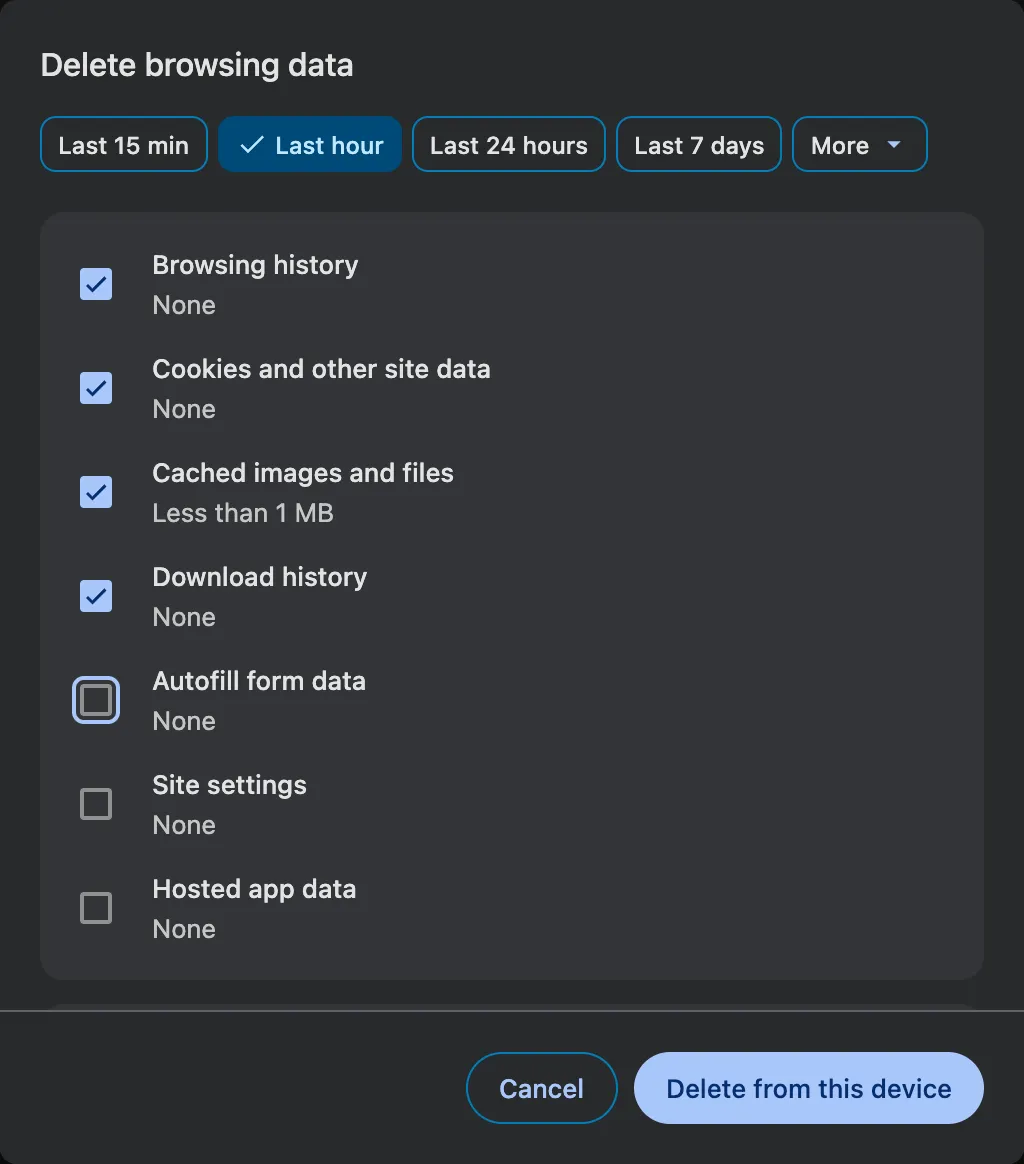
An hour is a sensible default for the lent-laptop case. It is the wrong one for almost every other reason people open this dialog. A cookie that was set six months ago is not from the last hour. The broken login that support wants you to clear probably is not either.
What I stored, and what one press removed
A small server on my laptop played two websites. Each one saved an ID in every place a page is allowed to keep one: a cookie, the two kinds of built-in storage (localStorage and IndexedDB), a stored copy of a file, a background script that stays installed (a service worker), and a file the browser was told to cache for a year. With the entry in the history list, that makes seven things to look for per site. I also gave each site permission to send notifications, through Chrome’s own site settings page.
A script drove my ordinary installed Chrome through the visits on a fresh profile. It opened the first site, waited 62 minutes, opened the second, and then clicked the real dialog twice: once exactly as it opened, and once with the range switched to All time. After each press it went back to both sites and checked what they could still find.
| site visited 62 minutes before | site visited under a minute before | |
|---|---|---|
| after Delete, as the dialog opens | 7 of 7 still there | 0 of 7 |
| after Delete, with All time | 0 of 7 | 0 of 7 |
| notification permission | still granted | still granted |
| device traits, compared with the first visit | 11 of 11 same | 11 of 11 same |
| internet address | same | same |
The first row is the one I would want a friend to know about. One press with the default range, and the older site still had its cookie, all its stored data and its cached file, and it was still in the history list. To that site I was the same returning visitor as before.
The second row is the button doing its job. With All time selected, both sites came back with nothing. The cookie was new, the storage was empty, the background script was gone, the cached file was downloaded again, and the history page listed neither of them. For the data a site keeps in your browser, this works, and it is complete.
What “All time” still left
The permission. Both sites could still send notifications after both presses. Permissions live under Site settings, which is one of the three unticked boxes behind “Show more”. Google’s help page describes that box as the one that deletes “settings and permissions you give to websites”, and gives camera and location as examples.[1] So a site you once allowed to use your camera or your location keeps that after a normal clear. The next time you open it, it does not have to ask.
The device. Each visit, my test page read 11 things about the machine that need no permission: browser and system details, languages, timezone, screen size, processor cores, memory, platform, graphics chip, installed fonts, and the result of a small drawing test. All 11 matched before and after. None of them is stored in the browser, so there is nothing for the dialog to delete. This combination is called a browser fingerprint, and the W3C’s guidance on it is blunt: “a browser fingerprint typically cannot be cleared or re-set”, and “tools such as clearing cookies or using a VPN do not prevent further correlation.”[3] A private window does not change it either. I measured that separately in what incognito mode actually hides.
The address. My internet address was the same on every visit. It belongs to the network, not to the browser.
What was never in the browser
The dialog can only delete what Chrome holds. Google’s help page has a section titled “Data that doesn’t get deleted”, and it names three things:[1]
- Your Google activity. “Searches and other activity on Google services, such as Gemini, are saved to your Google Account.” That record lives on Google’s side and has its own delete page, My Activity.[2] The two are separate in both directions. Google’s account help says activity “might be saved in your browser, even if you delete it from My Activity.”[2]
- Extensions. They “can store data on your computer or in your Google Account”, and this dialog does not touch it.
- Saved passwords. They are managed in the password manager, not here.
One more comes from the same page. Clearing the download history removes the list, “but the actual files aren’t removed from your computer.”[1] Whatever you downloaded is still in your Downloads folder.
And every site you have an account on has its own record of what you did there: orders, messages, watch history. Clearing cookies signs you out of that record. It does not delete it.
What a full clear costs
All time has a price. You are signed out of every site at once. Baskets, drafts saved in the page and “remember this device” ticks are gone with the cookies. And every site has to download its files again, so the first visit to each one is slower than you are used to.
If you run a website, that last effect is useful. A full clear for your own site is the closest you can get to arriving as a stranger: no saved login, nothing cached. It is a good moment to sit through the first thirty seconds the way a new visitor does.
Where my test is thin
It is one laptop, one browser version and a profile that was not signed in to a Google account. Google’s help page says that if you delete while signed in to Chrome, the data is also removed from your other devices and your account,[1] and I did not test that. My two “websites” were local test pages that stored one small ID each. Real sites store more, but through the same doors.
I only measured Chrome on a desktop. Other browsers have their own dialogs and their own defaults, and I have not checked them. And 11 traits is a short list. Real fingerprinting scripts read more, so “11 of 11 same” is a floor.
What to press
For a lent laptop or the last half hour, the dialog as it opens is fine.
For anything older, change the range before you press. “All time” sits under the More chip. Open “Show more” and tick Site settings too if you want permissions gone, or review them one site at a time in Chrome’s settings.
For what Google has saved about you, go to My Activity, because this button will not reach it. And if what you want is for sites to stop recognising you, clearing helps with cookies and does nothing about the device and the network.